Free Online Photo Noise Reduction Tool
Drop a file here,
or use Ctrl+V / Cmd+V to paste
Continue editing in
Or try a sample photo:
Try a sample photo:
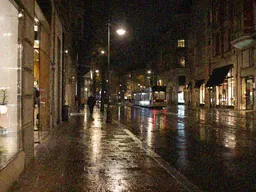


Clean Up Grainy Photos
Reduce grain and color speckles in low-light and high-ISO photos. The tool measures how noisy your photo is and filters out about that much, so flat areas come out smooth while edges and texture are kept.
- Free, no watermark
- No sign-up
- Photos never leave your device
- Hold to compare with the original
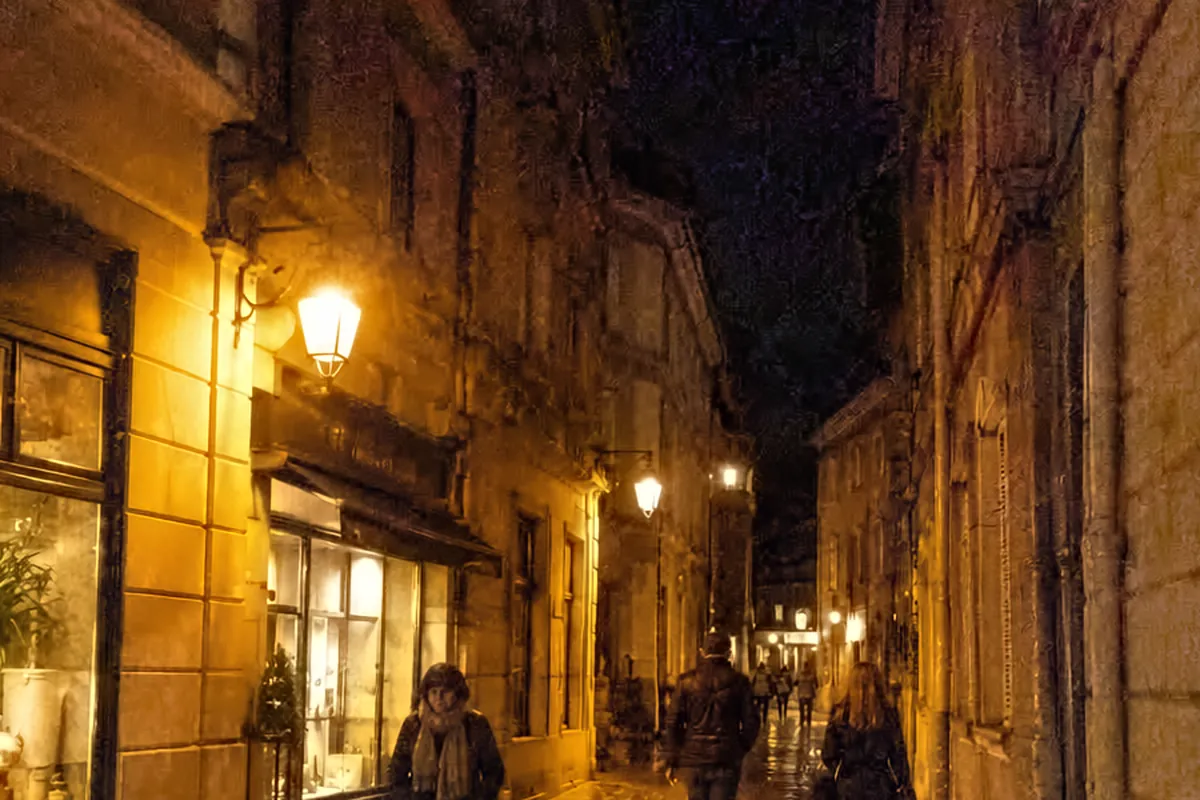
Before and After
A night photo from a phone, shown close up. Drag the line to compare.
 BeforeAfter
How to Remove Noise
-

1 Upload Your Photo
Drop a photo here, choose one from your device, or paste one with Ctrl+V. JPEG, PNG, WebP and HEIC photos all open.
-

2 Set the Strength
Move the slider until the grain is gone but the detail you want is still there. Set it to 0% to compare with the original.
-

3 Save Your Photo
Choose JPEG, PNG or WebP and save. The photo is saved at its full size; on a phone you can also share it straight to another app.
 BeforeAfter
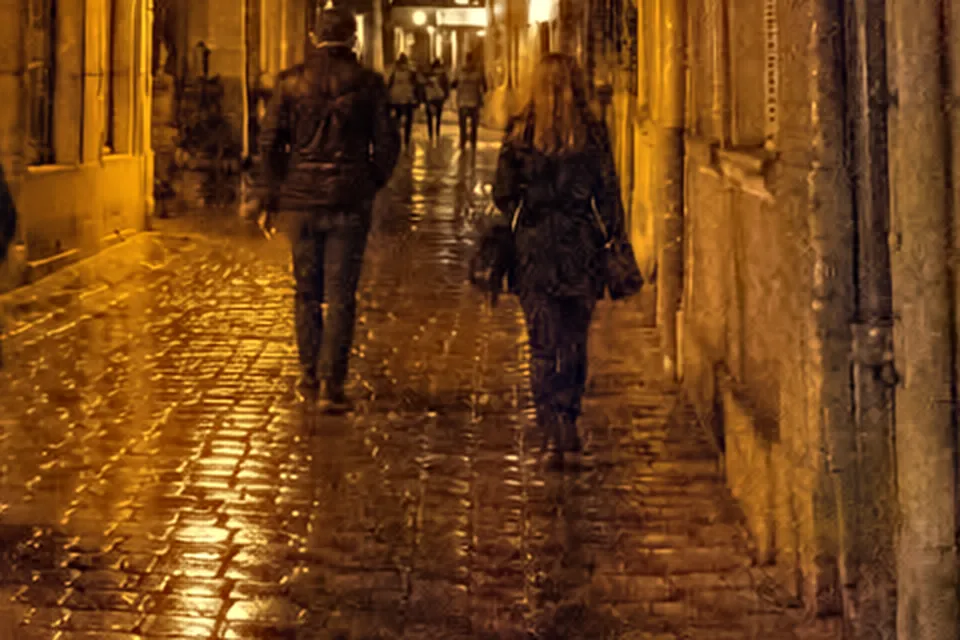
Edges and Texture Kept
Grain is removed in small 8×8 blocks: strong patterns such as edges and texture are kept, and weak random ones are dropped. Color is smoothed along the edges of the cleaned photo, so it does not bleed.
Photos That Need It
Low-Light Photography
Remove noise from night shots, indoor photography, and low-light conditions where high ISO settings create unwanted grain.
Scanned Photos
Soften film grain and scanner noise in scanned prints and negatives. It reduces grain only; it does not repair scratches, dust or fading.
Mobile Photography
Enhance smartphone photos affected by sensor noise, especially in challenging lighting conditions or zoomed shots.
Remove Noise at a Glance
| Price | Free, with no watermark and no sign-up |
|---|---|
| Control | One slider, 0% to 100%; 50% to start |
| How it works | Measured noise, DCT thresholding and a guided filter; no AI |
| Opens | JPEG, PNG, WebP, HEIC |
| Saves as | JPEG, PNG, WebP |
| Resolution | The full size of your photo |
| Files at once | One photo at a time |
| Where it runs | In your browser; nothing is uploaded |
Updated November 25, 2026
Frequently Asked Questions
What is image noise and what causes it?
Image noise appears as grain, speckles, or random pixels in photos. It's caused by high ISO settings, low light conditions, sensor heat, or digital processing artifacts. This tool reduces both the grain and the colored speckles.
How does the noise reduction work?
It does not use AI. The tool first measures the noise in the flattest parts of your photo, at each brightness level. It then removes grain with DCT thresholding, which keeps strong edges and texture, and smooths color speckles with a guided filter that follows the edges of the cleaned photo.
Will noise reduction affect image sharpness?
At moderate settings, edges stay sharp and only the finest texture softens. Higher settings smooth more, including fine detail such as hair, foliage or fabric, so lower the slider until the detail you care about comes back.
How long does noise reduction processing take?
The preview updates in under a second. Saving filters the full-size photo, which takes a few seconds for a 12-megapixel photo on a computer, and longer on a phone.
Is my photo saved at full size?
Yes. You edit a smaller preview, but Save applies the same setting to the original photo at its full size. PNG keeps every pixel; JPEG and WebP use the quality you choose, 85% unless you change it.
Which formats can I use?
You can open JPEG, PNG, WebP and HEIC photos and save as JPEG, PNG or WebP. iPhone HEIC photos are turned into JPEG when they open. Transparent parts stay transparent in PNG and WebP and turn white in JPEG.
Does it work on my phone?
Yes. On a phone the photo opens full screen with the control below it. Press and hold the photo to compare it with the original, then save it or share it straight to another app.
Are my photos uploaded?
No. Your photo is edited in your browser and never leaves your device.