Sepia Filter
Or try a sample photo:
Try a sample photo:

Drop a file here,
or use Ctrl+V / Cmd+V to paste
Continue editing in:
Give a Photo the Brown Tone of an Old Print
One click turns your photo into warm brown tones, like a print from a century ago. The Sepia filter is a set of slider values, so you can make it lighter, warmer or stronger afterwards. The page opens with Sepia picked, and the photo is saved at its full size, free and without a watermark.
- Free, no watermark
- No sign-up
- Photos never leave your device
- Hold to compare with the original
Before and After
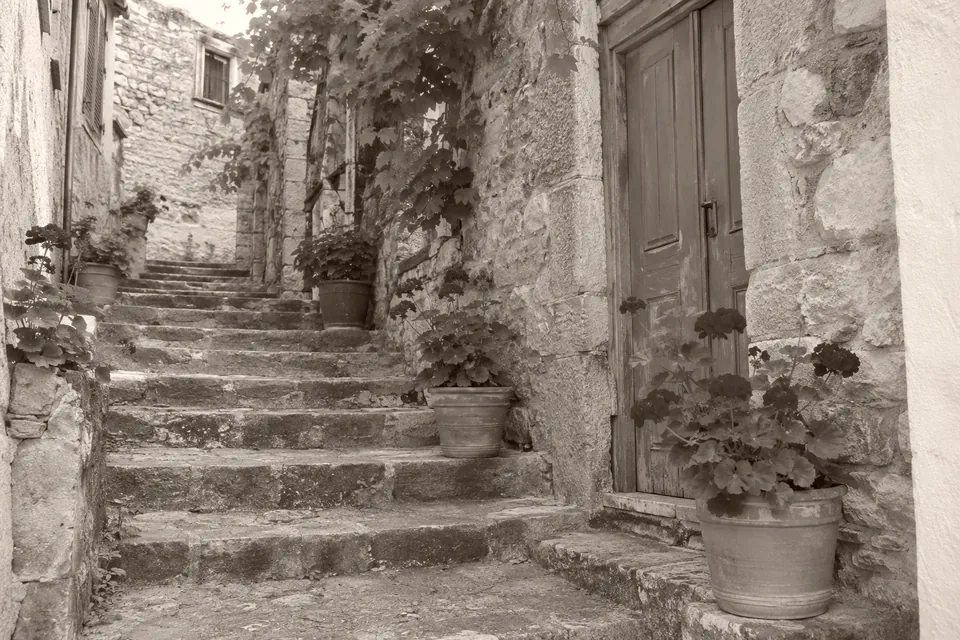
Real results of the Sepia filter. Drag the line to compare.
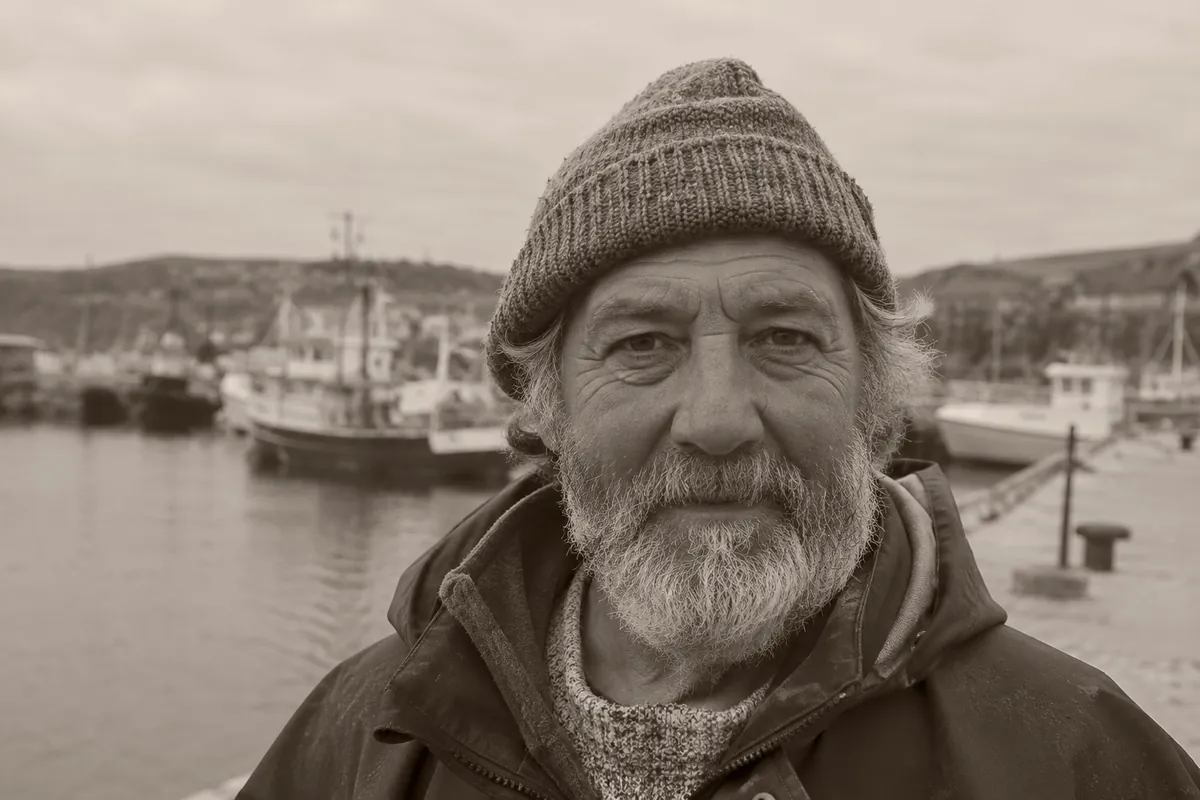
 BeforeAfter
How to Make a Photo Sepia
-
1 Upload Your Photo
Drop a photo here, choose one from your device, or paste one with Ctrl+V. JPEG, PNG, WebP and HEIC photos all open.
-

2 Pick Sepia
Sepia is already picked on the Filter tab, so the photo turns brown as soon as it opens. To change the look, move the sliders on the Adjust tab, or pick None to go back to the original colors.
-
3 Save Your Photo
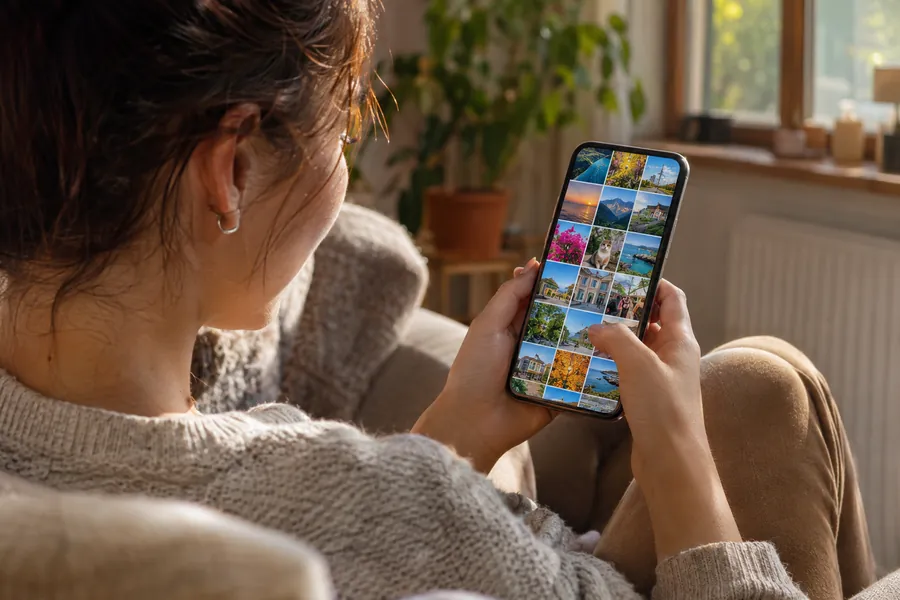
Choose JPEG, PNG or WebP and save. The photo is saved at its full size; on a phone you can also share it straight to another app.
 BeforeAfter
How the Sepia Look Is Made
Sepia here is three slider settings: Saturation −100 takes out the color, Warmth +38 adds the brown-gold tone and Brilliance +10 lifts the dim parts a little. Move Warmth for a deeper or paler brown, or Contrast for a crisper print.
Where Sepia Works
Family Photos
Give new photos of people, homes and keepsakes the look of an old family album.
Invitations and Cards
A brown tone suits wedding, anniversary and birthday cards with a classic look.
Old Places
Castles, old streets, farms and steam trains look at home in sepia.
Sepia Filter at a Glance
| Price | Free, with no watermark and no sign-up |
|---|---|
| Filter | Sepia: Saturation −100, Warmth +38, Brilliance +10 |
| Fine-tune | All nine sliders of the Photo Editor |
| Opens | JPEG, PNG, WebP, HEIC |
| Saves as | JPEG, PNG, WebP |
| Resolution | The full size of your photo |
| Files at once | One photo at a time |
| Where it runs | In your browser; nothing is uploaded |
Updated November 25, 2026
Frequently Asked Questions
What is a sepia photo?
Sepia is a warm brown tone. Old photographic prints were often toned with it, which is why brown photos look old. This filter makes a black-and-white version of your photo and warms it to that brown.
Can I make the sepia lighter or stronger?
Yes. Sepia only sets three sliders. Turn Warmth up for a deeper brown or down for a paler one, use Brightness or Brilliance to lighten it, and Contrast to make it crisper.
Can I go back to the colors?
Yes. Pick None on the Filter tab and every slider returns to zero, which is your original photo.
Is my photo saved at full size?
Yes. Save applies your settings to the original photo at its full size, even when it is shown smaller on screen. PNG keeps every pixel; JPEG and WebP use the quality you choose, 85% unless you change it.
Which formats can I use?
You can open JPEG, PNG, WebP and HEIC photos and save as JPEG, PNG or WebP. iPhone HEIC photos are turned into JPEG when they open. Transparent parts stay transparent in PNG and WebP and turn white in JPEG.
Does it work on my phone?
Yes. On a phone the photo opens full screen with the sliders, filters and crop below it. Press and hold the photo to compare it with the original, then save it or share it straight to another app.
Are my photos uploaded?
No. Your photo is edited in your browser and never leaves your device.