Vintage Filter
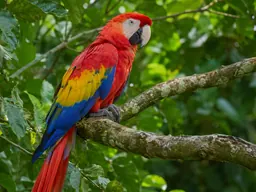
Or try a sample photo:
Try a sample photo:


Drop a file here,
or use Ctrl+V / Cmd+V to paste
Continue editing in:
Give a Photo a Faded, Retro Look
One click gives your photo the soft, warm look of an old print: gentler color, warmer tones and lighter shadows. The Vintage filter is a set of slider values, so you can make it stronger or softer afterwards. The page opens with Vintage picked, and the photo is saved at its full size, free and without a watermark.
- Free, no watermark
- No sign-up
- Photos never leave your device
- Hold to compare with the original
Before and After
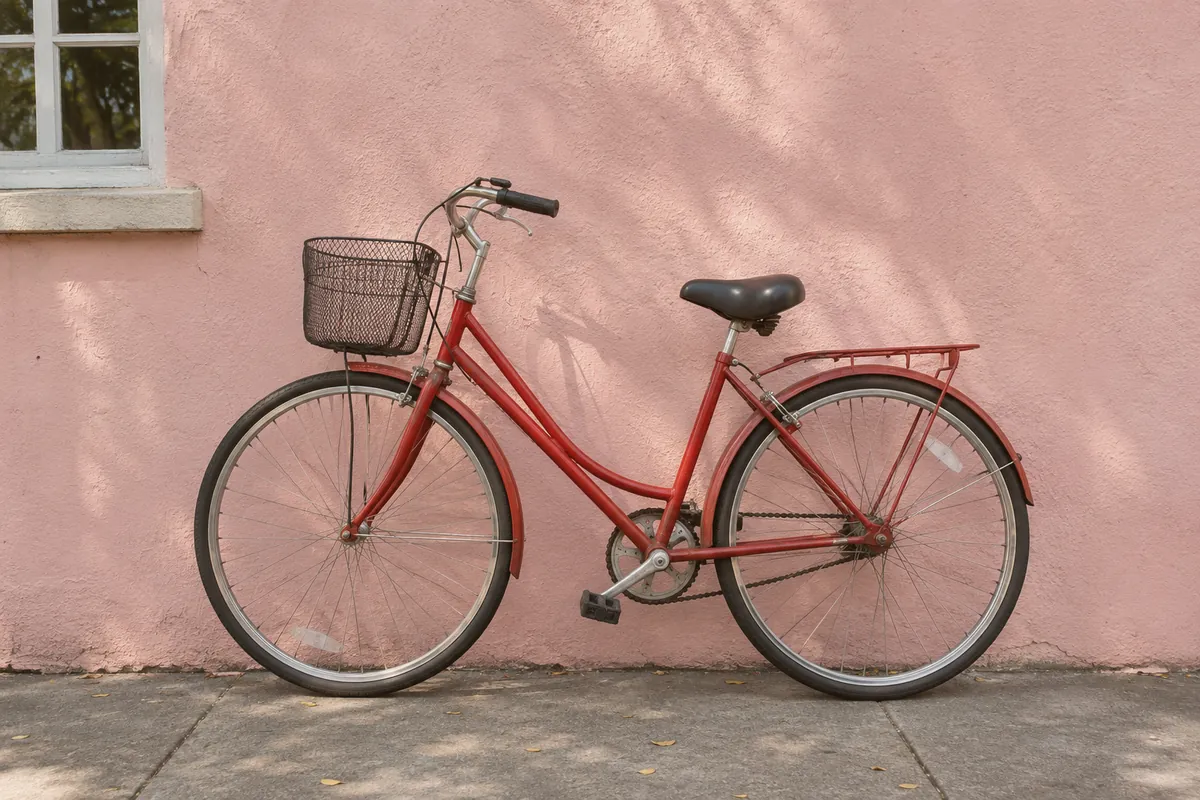
Real results of the Vintage filter. Drag the line to compare.
 BeforeAfter
How to Make a Photo Look Vintage
-
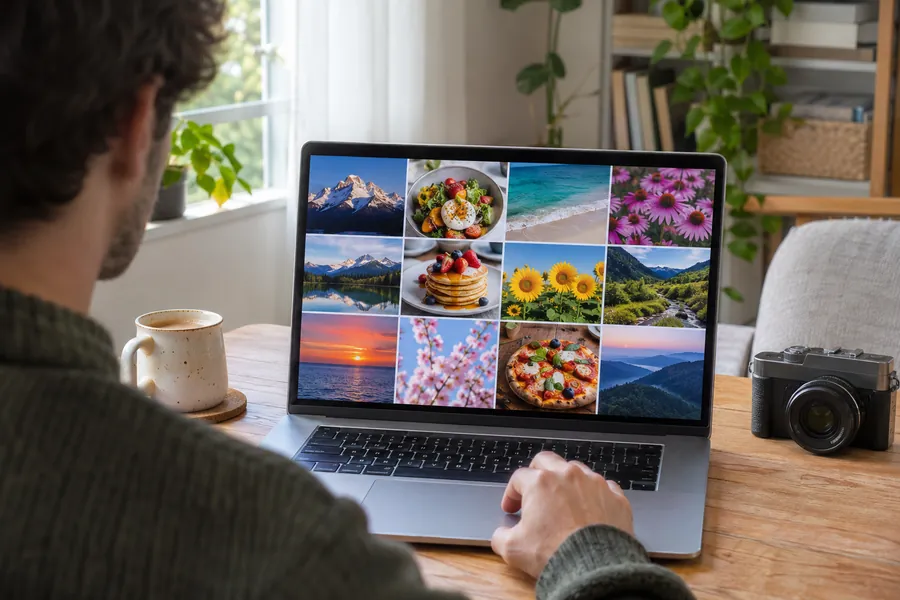
1 Upload Your Photo
Drop a photo here, choose one from your device, or paste one with Ctrl+V. JPEG, PNG, WebP and HEIC photos all open.
-

2 Pick Vintage
Vintage is already picked on the Filter tab, so the photo changes as soon as it opens. Try Faded or Sepia for other old looks, or fine-tune any slider on the Adjust tab.
-
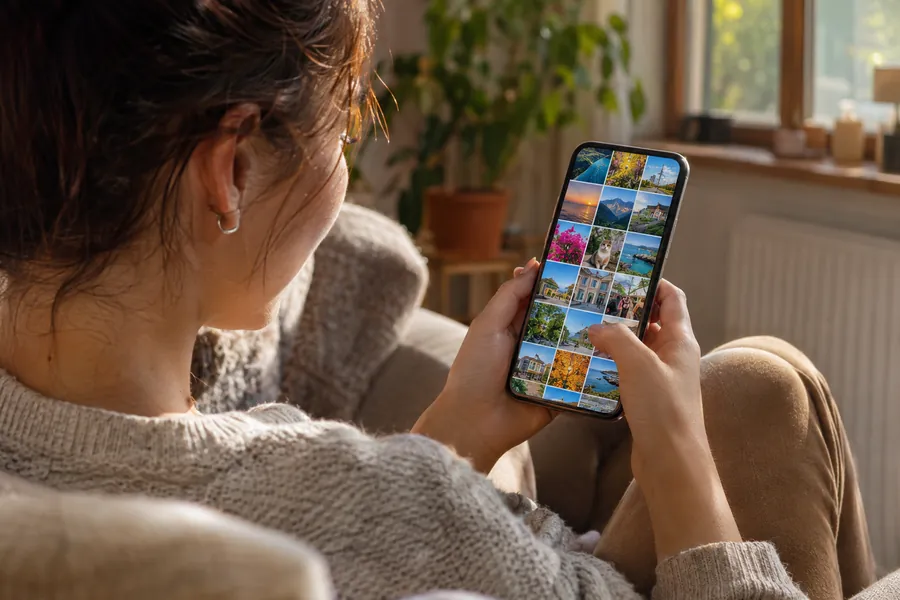
3 Save Your Photo
Choose JPEG, PNG or WebP and save. The photo is saved at its full size; on a phone you can also share it straight to another app.
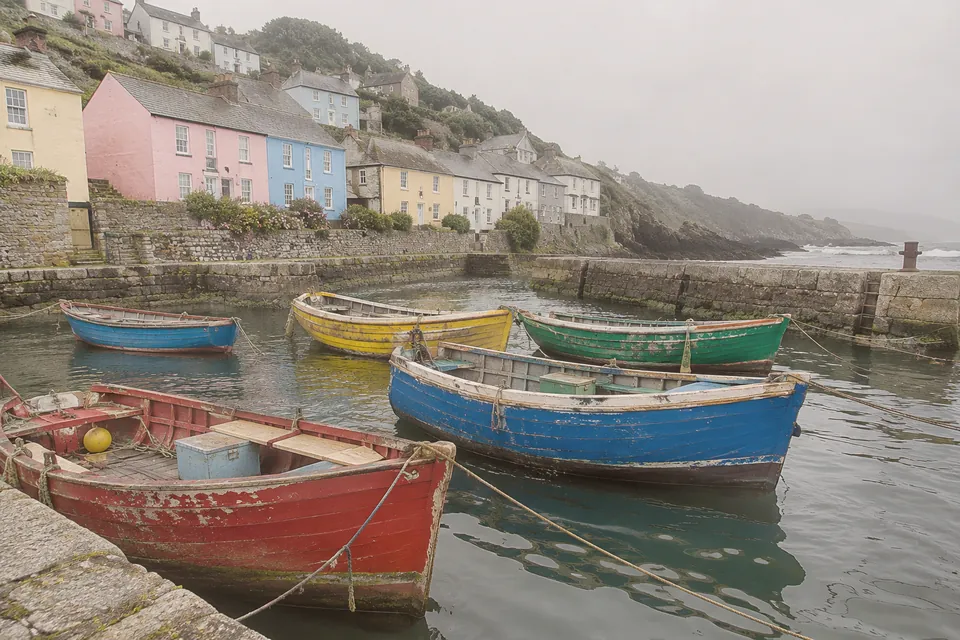
 BeforeAfter
How the Vintage Look Is Made
Vintage here is four slider settings: Saturation −20 for gentler color, Warmth +25 for a golden tone, Contrast −10 for softer light and shade, and Brilliance +15 to lift the dim parts. Change any of them to make the look your own.
Ways to Use the Vintage Look
Social Posts
Give a set of photos one warm, faded style so they look like they belong together.
Album-Style Prints
Holiday snaps, family gatherings and old towns look like prints from an album.
Save Your Own Look
Change the sliders, then click Save settings on the Adjust tab to keep your version as a filter in this browser.
Vintage Filter at a Glance
| Price | Free, with no watermark and no sign-up |
|---|---|
| Filter | Vintage: Saturation −20, Warmth +25, Contrast −10, Brilliance +15 |
| Fine-tune | All nine sliders of the Photo Editor |
| Opens | JPEG, PNG, WebP, HEIC |
| Saves as | JPEG, PNG, WebP |
| Resolution | The full size of your photo |
| Files at once | One photo at a time |
| Where it runs | In your browser; nothing is uploaded |
Updated November 25, 2026
Frequently Asked Questions
What makes a photo look vintage?
Old prints fade with time: their colors grow weaker and warmer, and the deepest blacks turn soft. This filter copies that with four sliders: less color, more warmth, less contrast and lighter dim tones.
Does it add grain, scratches or a border?
No. It changes only the color and light. For a border, use Photo Frames; to darken the corners, use Vignette.
What is the difference between Vintage, Faded and Sepia?
Vintage keeps some color and warms it. Faded lowers the contrast more and lifts the dim tones more, with no added warmth. Sepia takes the color out completely and tones the photo brown.
Is my photo saved at full size?
Yes. Save applies your settings to the original photo at its full size, even when it is shown smaller on screen. PNG keeps every pixel; JPEG and WebP use the quality you choose, 85% unless you change it.
Which formats can I use?
You can open JPEG, PNG, WebP and HEIC photos and save as JPEG, PNG or WebP. iPhone HEIC photos are turned into JPEG when they open. Transparent parts stay transparent in PNG and WebP and turn white in JPEG.
Does it work on my phone?
Yes. On a phone the photo opens full screen with the sliders, filters and crop below it. Press and hold the photo to compare it with the original, then save it or share it straight to another app.
Are my photos uploaded?
No. Your photo is edited in your browser and never leaves your device.