Remove White Background
Make the white behind a logo, a product or a drawing transparent, right in your browser.
Drop a file here,
or use Ctrl+V / Cmd+V to paste
Runs in your browser. Your photo is never uploaded.
Continue editing in:
Make a White Background Transparent
Remove White Background is a free online tool that makes the white background of an image transparent and saves it as a PNG. It suits logos, product photos on white, drawings and clip art. The edges are un-mixed from the white, so the cutout has no white fringe on a dark page, and a soft shadow can stay or go. It runs in your browser, so your image is never uploaded, and it is free with no sign-up and no watermark.
- Free, no watermark
- No sign-up
- Photos never leave your device
- Works on phone and computer
Before and After
Real results, saved as transparent PNGs. The squares show the parts that are now see-through.
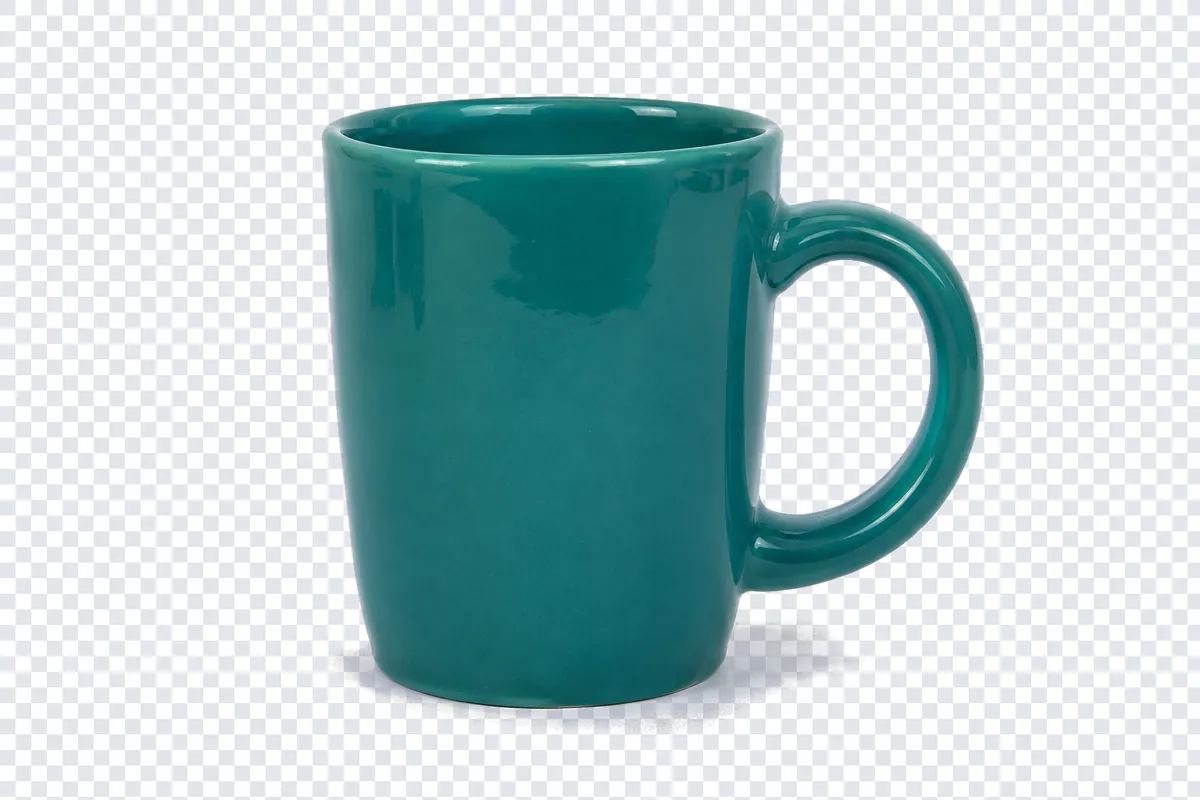
 BeforeAfter
How to Remove a White Background
-

1 Upload Your Photo
Upload an image on a white background (JPEG, PNG, WebP or HEIC), or try one of ours. The white is removed right away.
-

2 Check the Edges
The squares show what is now transparent. Raise Tolerance if a white edge is left, and turn on Only around the subject to keep the white inside the subject.
-

3 Save a Transparent PNG
Save as PNG or WebP to keep the transparency, then use the image on any background. On a phone you can share it straight to another app.

Keep the Shadow, or Remove It
A soft shadow under a product is light grey, not white, so the starting settings keep it and the product sits naturally on a new background. Raise Tolerance to remove the shadow as well.

Keep the White Inside
Turn on Only around the subject and only the white that is connected to the edges of the image is removed. White eyes, letters or shapes inside the subject stay.

No White Fringe
The pixels along an edge are partly the subject and partly white. Each one is made partly see-through and its color is un-mixed from the white, so fine edges such as antlers, fur or grass have no light outline on a dark or colored background.
Remove White Background at a Glance
| Price | Free, with no watermark and no sign-up |
|---|---|
| Removes | White, black or any plain color you pick |
| Settings | Tolerance, Softness, Only around the subject, Trim empty edges |
| Opens | JPEG, PNG, WebP, HEIC |
| Saves as | A transparent PNG; WebP is transparent too; JPEG fills the background with white |
| Saved size | Your photo's own size, up to 16 megapixels |
| Files at once | One photo at a time |
| Where it runs | In your browser; nothing is uploaded |
Updated November 26, 2026
Frequently Asked Questions
How do I remove a white background from an image?
Upload the image. The white is removed right away, and the squares show where it is now transparent. If a white edge is left, raise Tolerance; then save it as PNG.
Why is the shadow under my product still there?
A soft shadow is grey, not white, so the starting settings keep it and the product does not look as if it floats. To remove it, raise Tolerance until the shadow is gone.
The white inside my logo disappeared too. How do I keep it?
Turn on Only around the subject. Then only the white that is connected to the edges of the image is removed, and white enclosed by the subject, such as letters or eyes, stays.
Can I remove another color, such as a grey or green background?
Yes. Press the eyedropper and tap the color in the photo, or choose Auto, which takes the color along the edges of your photo. White and Black are one tap away.
Will the edges have a white fringe?
Usually not. Edge pixels that mix the subject with the white are made partly see-through and their color is un-mixed from the white, so the cutout has no light outline on a dark background. Check it on dark with the buttons on the photo before you save.
What do the grey and white squares mean?
They show the parts of the picture that are transparent. They are not in your picture and do not appear in the saved PNG.
Why is my transparent background white or black?
Either the picture was saved as JPEG, which cannot keep transparency and fills it with white, or the app showing it draws transparency as white or black. Save as PNG or WebP, and open it in an app that supports transparency, such as a browser or a design app.
Is this AI? How is it different from Remove Background?
It is not AI. It removes one plain color, or the paper behind ink, by measuring every pixel, so it is exact on plain backgrounds and runs on your own device with no limit. For a person, a pet or a product in front of a busy background, use Remove Background, whose AI finds the subject.
How big is the saved image?
As big as your image, up to 16 megapixels; a bigger one is scaled down to 16 megapixels. The preview is smaller so that it stays quick, but the saved image is made again from your original.
Is it free?
Yes. There is no sign-up, no watermark and no limit on how many images you do, because it all runs in your browser.
Are my photos uploaded?
No. Your photo is edited in your browser and never leaves your device.
Does it work on a phone?
Yes. Once you add a photo it opens as a full-screen editor, with the settings in the bar at the bottom. Press and hold the photo to compare it with the original, then save it or share it straight to another app.