Adjust Contrast
Or try a sample photo:
Try a sample photo:



Drop a file here,
or use Ctrl+V / Cmd+V to paste
Continue editing in:
Give a Flat Photo More Punch, or Soften a Harsh One
Drag the Contrast slider to spread the tones of your photo apart or pull them together. Turn it up and darks get deeper and lights get brighter; turn it down for a softer, flatter look. The slider starts at +20, and the photo is saved at its full size, free and without a watermark.
- Free, no watermark
- No sign-up
- Photos never leave your device
- Hold to compare with the original
Before and After
Real results of the Contrast slider. Drag the line to compare.
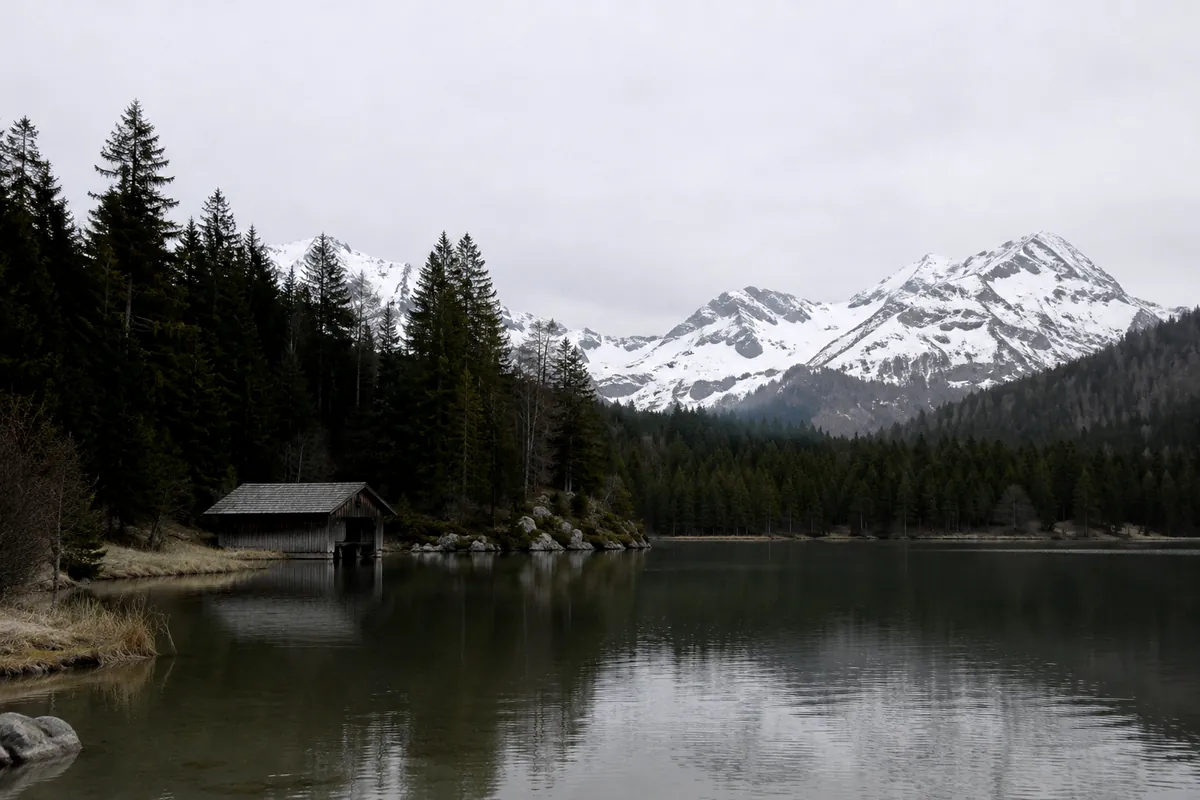
 BeforeAfter
How to Change the Contrast
-
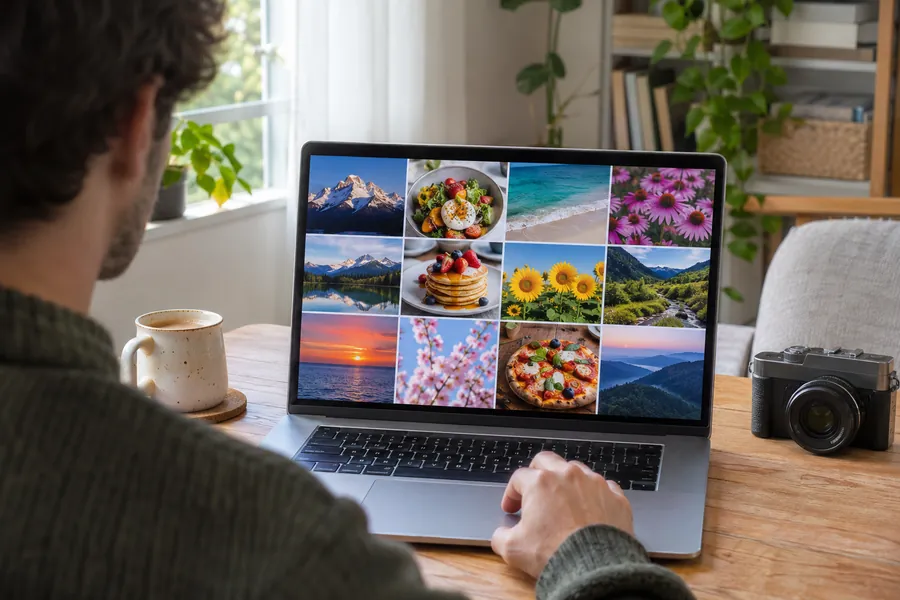
1 Upload Your Photo
Drop a photo here, choose one from your device, or paste one with Ctrl+V. JPEG, PNG, WebP and HEIC photos all open.
-

2 Set the Contrast
The slider starts at +20. Drag it right for more contrast, up to +100, or left for less, down to −100, where the whole photo turns mid-grey. The photo changes as you drag.
-

3 Save Your Photo
Choose JPEG, PNG or WebP and save. The photo is saved at its full size; on a phone you can also share it straight to another app.
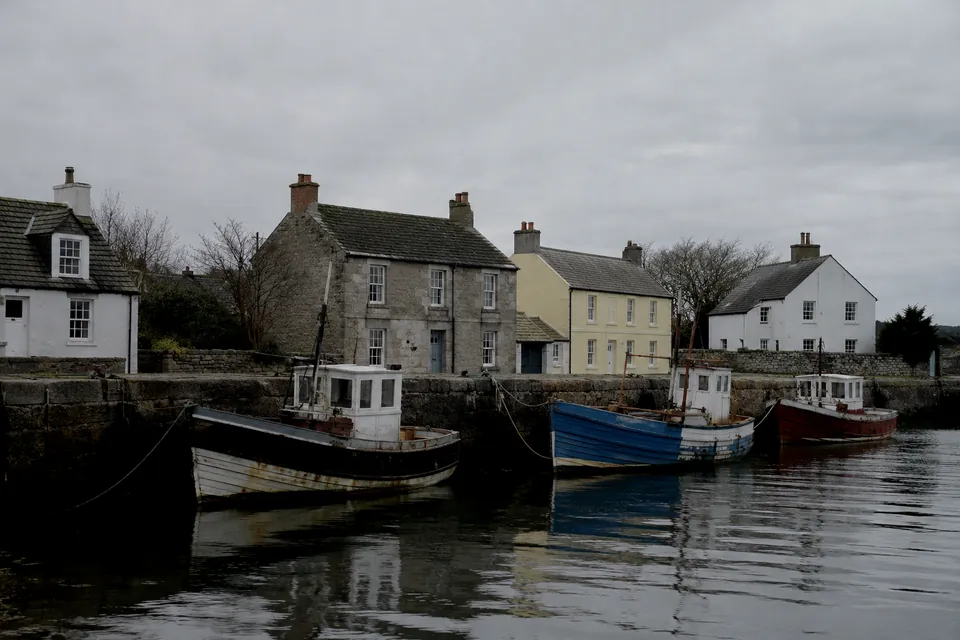
 BeforeAfter
Darks Darker, Lights Lighter
Every tone moves away from mid-grey, or toward it, by the same factor: at +50 a tone 40 levels below mid-grey moves to 60 below. Colors get a little stronger as the contrast rises, and the darkest and brightest parts can lose detail at high settings.
When to Change the Contrast
Hazy and Overcast Photos
Mist, haze and grey skies leave a photo flat. +15 to +35 brings back its depth.
Harsh Midday Light
Turn the contrast down a little to soften hard shadows and bright highlights.
Only the Dark Parts
Contrast changes the whole photo. To lift only the dark parts, use Shadows or Brilliance on the same Adjust tab.
Adjust Contrast at a Glance
| Price | Free, with no watermark and no sign-up |
|---|---|
| Control | One slider, from −100 to +100; +20 to start |
| Works around | Mid-grey: tones move away from it or toward it |
| Opens | JPEG, PNG, WebP, HEIC |
| Saves as | JPEG, PNG, WebP |
| Resolution | The full size of your photo |
| Files at once | One photo at a time |
| Where it runs | In your browser; nothing is uploaded |
Updated November 25, 2026
Frequently Asked Questions
What does contrast do to a photo?
Contrast is the difference between the dark and light parts of a photo. Turning it up pushes every tone away from mid-grey, so darks get deeper and lights brighter; turning it down pulls them together, until at −100 the photo is one flat grey.
How much contrast should I add?
For most photos +10 to +30 is enough. Watch the darkest and brightest parts: when shadows turn solid black or a sky turns pure white, go back a little.
What is the difference between contrast and brightness?
Brightness makes the whole photo lighter or darker. Contrast keeps mid-grey where it is and moves the darks and lights apart or together. The Brightness slider is on the same tab.
Is my photo saved at full size?
Yes. Save applies your settings to the original photo at its full size, even when it is shown smaller on screen. PNG keeps every pixel; JPEG and WebP use the quality you choose, 85% unless you change it.
Which formats can I use?
You can open JPEG, PNG, WebP and HEIC photos and save as JPEG, PNG or WebP. iPhone HEIC photos are turned into JPEG when they open. Transparent parts stay transparent in PNG and WebP and turn white in JPEG.
Does it work on my phone?
Yes. On a phone the photo opens full screen with the sliders, filters and crop below it. Press and hold the photo to compare it with the original, then save it or share it straight to another app.
Are my photos uploaded?
No. Your photo is edited in your browser and never leaves your device.