Remove People from Photo
Paint over a person in the background, and AI fills the space with what was behind them.
Free to use: 2 removals per hour.
Drop a photo here
or click to browse — JPEG, PNG, WebP, HEIC • up to 20 MB
Paint red over each person to remove, their shadow included. Erase accidental marks before submitting.
Photos go to our AI server only to make the fill and are not stored permanently.
Continue editing in
Drop a photo here
Or try a sample photo:
Try a sample photo:
Take People Out of Your Photos
Paint over a person, press Remove People, and AI fills the space with what was most likely behind them. It works best on people who are small in the photo and stand in front of sky, sand, water, grass or a plain wall. The photo is sent to our AI server for the fill, and only the painted area is replaced, so the rest of your photo keeps its full size. You can make 2 removals per hour for free, with no watermark and no sign-up.
- Free, no watermark
- No sign-up
- AI fills the area
- 2 removals per hour
Before and After
A real result of removing a person. Drag the line to compare.
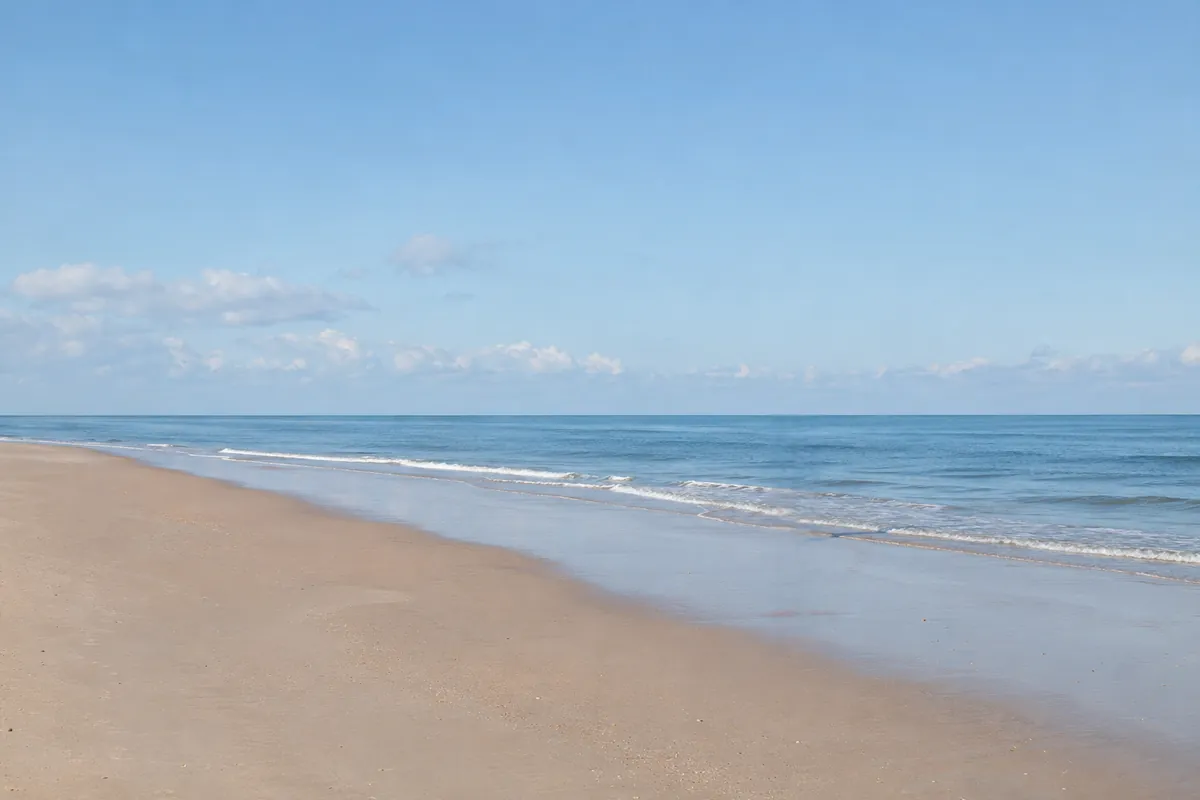
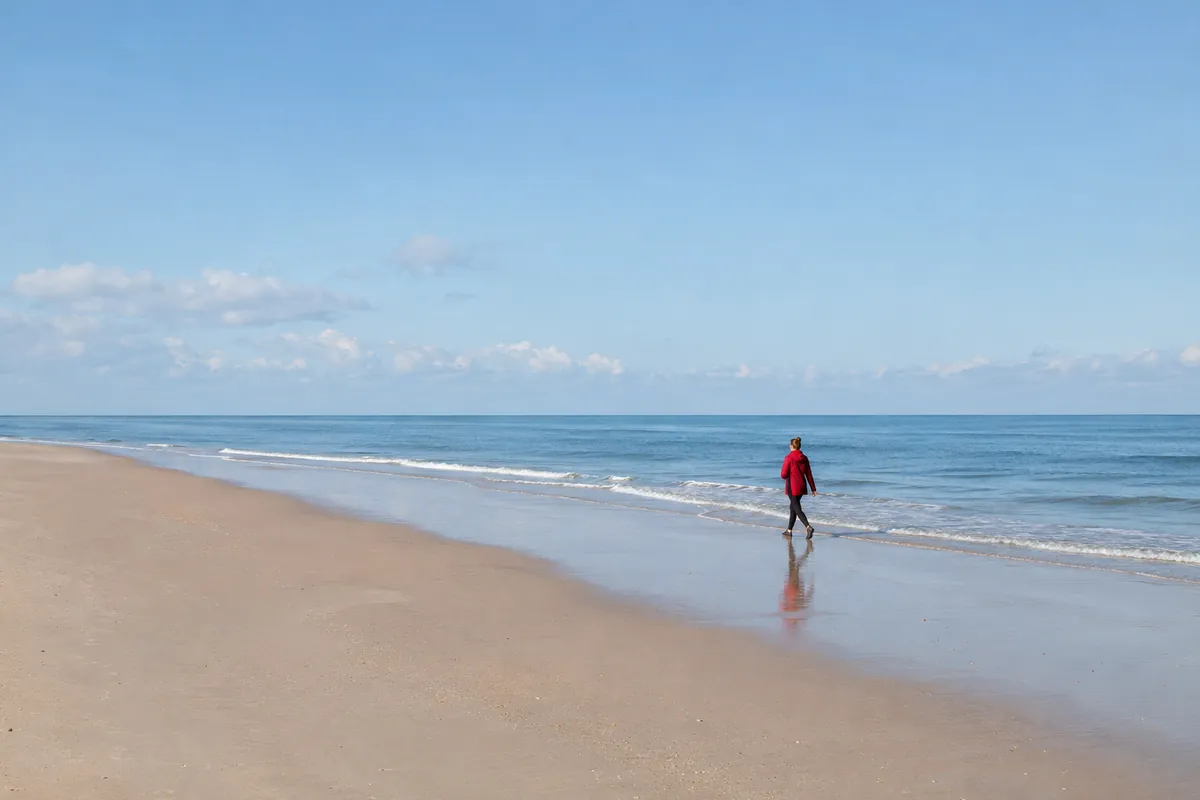 BeforeAfter
How to Remove a Person from a Photo
-
1 Upload Your Photo
Drop a photo here, choose one from your device, or paste one with Ctrl+V. JPEG, PNG, WebP and HEIC photos all open.
-
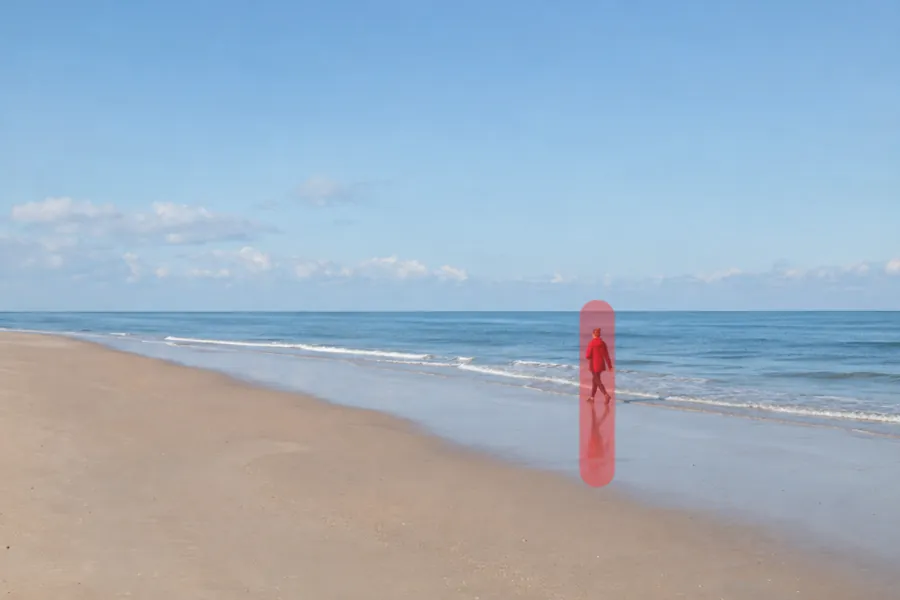
2 Paint Over the Person
Paint over the whole person, their shadow included, then press Remove People. Erase trims the painted area, and Edit Mask lets you paint again after a result.
-
3 Save Your Photo
Choose JPEG, PNG or WebP and save. The photo is saved at its full size; on a phone you can also share it straight to another app.
Tips for Better Results
Paint the Whole Person
Include hair, bags, feet and the shadow on the ground; anything left unpainted stays in the photo.
Small People Fill Best
A person in the background on plain ground fills well. A person close to the camera, or in front of other people, leaves a large gap that the AI has to invent.
Several People at Once
Paint over everyone you want gone before you press Remove People. They are all filled in one go, and it counts as one removal.
Remove People from Photo at a Glance
| Price | Free, with no watermark and no sign-up |
|---|---|
| Removals | 2 per hour, free |
| AI fill | Made at up to 1024 pixels on the long side, then blended into your full-size photo |
| File size | Up to 20 MB |
| Opens | JPEG, PNG, WebP, HEIC |
| Saves as | JPEG, PNG, WebP |
| Resolution | The full size of your photo |
| Files at once | One photo at a time |
| Where it runs | On our AI server; photos are not stored permanently |
Updated November 26, 2026
Frequently Asked Questions
How do I remove a person from a photo?
Open the photo, paint over the person with the brush, their shadow included, and press Remove People. AI fills the painted area with what was most likely behind them. If something is left over, press Edit Mask, paint over it and remove it again.
Can I remove several people at once?
Yes. Paint over everyone you want gone, then press Remove People once. The whole painted area is filled in one go and counts as one removal.
Why does the filled area look wrong?
The AI cannot know what was really behind a person; it predicts it from the pixels around them. Plain backgrounds such as sky, sand, grass and water come out well. Behind a large person, or where faces, text or busy patterns were hidden, the fill can look smeared or made up. Paint a little past the edges and try again.
How many photos can I edit?
You can make 2 removals per hour for free. The limit is shared with Remove Object and Remove Text, which use the same AI, and each press of Remove People counts as one.
Is my photo saved at full size?
Yes. Only the painted area is replaced with the AI’s fill, blended at its edges, and the rest of your photo keeps every pixel at its full size.
Which formats can I use?
You can open JPEG, PNG, WebP and HEIC photos and save as JPEG, PNG or WebP. iPhone HEIC photos are turned into JPEG when they open. Transparent parts stay transparent in PNG and WebP and turn white in JPEG.
Does it work on my phone?
Yes. On a phone the photo opens full screen: paint over the person with your finger, press Remove, then save the photo or share it straight to another app.
Are my photos stored on your servers?
Your photo and the painted area are sent to our AI server to make the fill, and the result comes straight back to your browser. We do not store your photos permanently.