Photo Warmth
Or try a sample photo:
Try a sample photo:



Drop a file here,
or use Ctrl+V / Cmd+V to paste
Continue editing in:
Make a Photo Warmer or Cooler
Drag the Warmth slider toward gold for a warm, sunny look, or toward blue for a cool, crisp one, like the color temperature control on a camera. It also fixes a photo that came out too blue or too orange. The slider starts at +30, and the photo is saved at its full size, free and without a watermark.
- Free, no watermark
- No sign-up
- Photos never leave your device
- Hold to compare with the original
Before and After
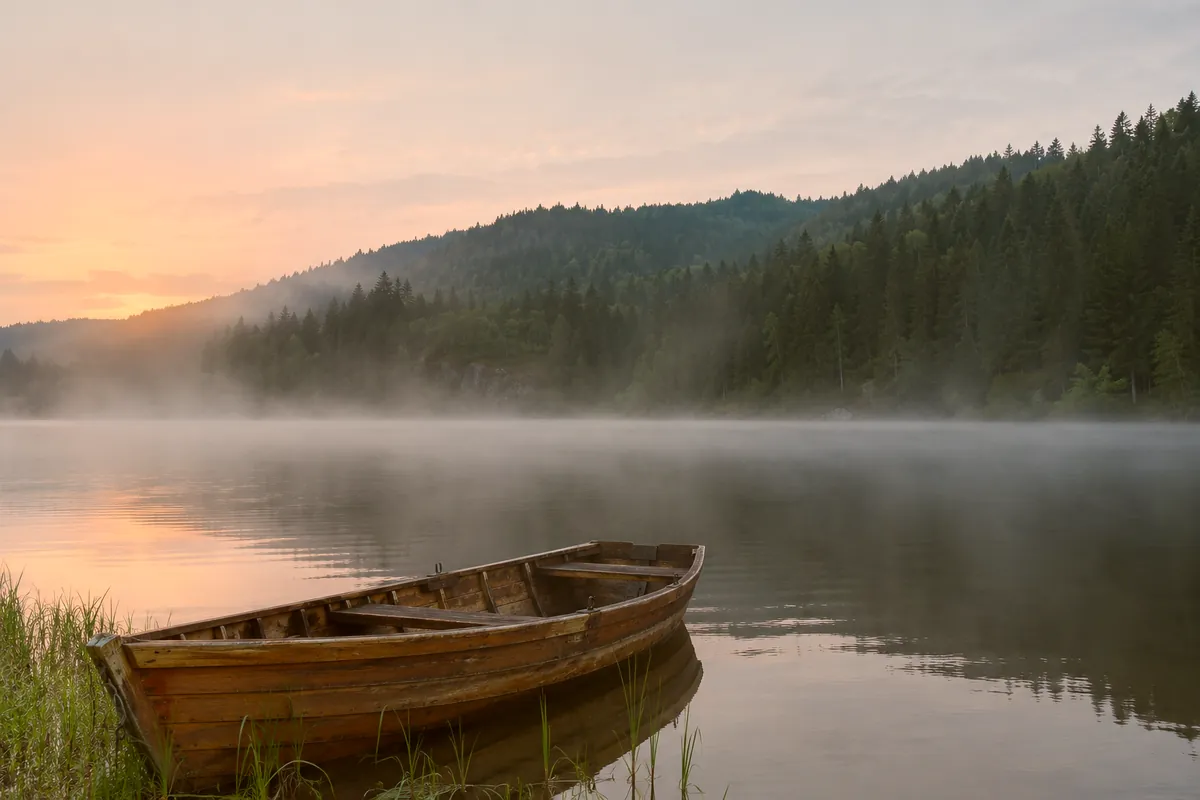
Real results of the Warmth slider. Drag the line to compare.
 BeforeAfter
How to Change the Warmth of a Photo
-
1 Upload Your Photo
Drop a photo here, choose one from your device, or paste one with Ctrl+V. JPEG, PNG, WebP and HEIC photos all open.
-

2 Set the Warmth
The slider starts at +30. Drag it right for warmer, golden tones, up to +100, or left for cooler, bluer ones, down to −100. The photo changes as you drag.
-

3 Save Your Photo
Choose JPEG, PNG or WebP and save. The photo is saved at its full size; on a phone you can also share it straight to another app.

 BeforeAfter
Fix a Color Cast
Lamps can make a photo orange, and shade or a cloudy day can make it blue. Move the slider the other way until white things look white again. If a photo is also too green or too pink, the Tint slider on the same tab fixes that.
When to Warm Up or Cool Down
Golden Hour Look
Add warmth to a beach, a sunset or a portrait for the soft, golden light of early evening.
Cool, Calm Scenes
Turn the warmth down for snow, water, city streets at night or a clean, modern look.
Matching Photos
Photos taken in different light can look mismatched side by side. Nudge each one warmer or cooler so they sit together.
Photo Warmth at a Glance
| Price | Free, with no watermark and no sign-up |
|---|---|
| Control | One slider, from −100 (cooler) to +100 (warmer); +30 to start |
| How it works | Red goes up and blue down, by up to 30 levels each, or the other way round |
| Opens | JPEG, PNG, WebP, HEIC |
| Saves as | JPEG, PNG, WebP |
| Resolution | The full size of your photo |
| Files at once | One photo at a time |
| Where it runs | In your browser; nothing is uploaded |
Updated November 25, 2026
Frequently Asked Questions
What does the Warmth slider do?
It raises red and lowers blue to make a photo warmer, or does the opposite to make it cooler. At +100 or −100 each moves by 30 levels out of 255, by the same amount everywhere in the photo.
Is warmth the same as white balance?
It does the job of the temperature part of white balance: it moves a photo between blue and orange. The Tint slider next to it covers the other part, green and magenta. It works on the finished photo, so a very strong cast may not come out completely.
Can I make only part of a photo warmer?
No. The slider changes the whole photo evenly.
Is my photo saved at full size?
Yes. Save applies your settings to the original photo at its full size, even when it is shown smaller on screen. PNG keeps every pixel; JPEG and WebP use the quality you choose, 85% unless you change it.
Which formats can I use?
You can open JPEG, PNG, WebP and HEIC photos and save as JPEG, PNG or WebP. iPhone HEIC photos are turned into JPEG when they open. Transparent parts stay transparent in PNG and WebP and turn white in JPEG.
Does it work on my phone?
Yes. On a phone the photo opens full screen with the sliders, filters and crop below it. Press and hold the photo to compare it with the original, then save it or share it straight to another app.
Are my photos uploaded?
No. Your photo is edited in your browser and never leaves your device.