Pixelate Image
Drop a file here,
or use Ctrl+V / Cmd+V to paste
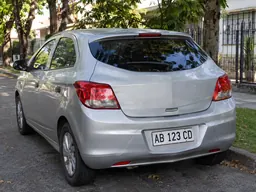
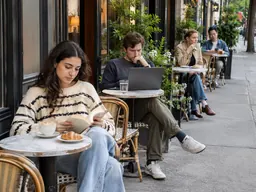
Or try a sample photo:
Try a sample photo:

Continue editing in:
Pixelate a Whole Photo, or Only the Parts You Paint
Pixelate Image turns a photo, or any part of it, into large square blocks. Press Apply to Whole Photo for the whole picture, or paint over a face, a number plate or a name to pixelate only that. Cell Size sets how big the blocks are. It is free, with no watermark, the photo is saved at its full size, and it never leaves your device.
- Free, no watermark
- No sign-up
- Photos never leave your device
- Hold to compare with the original
Before and After
Real results of Pixelate Image. Drag the line to compare.

 BeforeAfter
How to Pixelate an Image
-
1 Upload Your Photo
Drop a photo here, choose one from your device, or paste one with Ctrl+V. JPEG, PNG, WebP and HEIC photos all open.
-

2 Pixelate It
Set Cell Size for the size of the blocks. Press Apply to Whole Photo, or paint over only the part you want to hide. Undo takes back a stroke.
-
3 Save Your Photo
Choose JPEG, PNG or WebP and save. The photo is saved at its full size; on a phone you can also share it straight to another app.

Small Blocks or Large Ones
From left to right: Cell Size 6, 16 and 40. Small blocks keep the shapes and colors, for a retro pixel look; large blocks hide what is underneath. Cell Size grows with your photo, so 16 looks the same on a 720-pixel picture and on a 12-megapixel one.
What People Pixelate
Faces
Pixelate a child’s face or strangers in the background before you post a photo.
Number Plates
Hide a car’s plate before you list it for sale or share a photo of it.
Whole Pictures
Turn a photo into big blocks for a retro look, a puzzle or a “guess the picture” game.
Pixelate Image at a Glance
| Price | Free, with no watermark and no sign-up |
|---|---|
| Effects | Mosaic, Gaussian Blur, Motion Blur, Black Bar |
| Cell Size | 2 to 100, scaled up for photos over 720 pixels tall |
| Whole photo | Apply to Whole Photo, in one step |
| Brush | Size 5 to 500, with a hard round edge |
| Undo | Undo and Redo, up to 50 steps |
| Opens | JPEG, PNG, WebP, HEIC |
| Saves as | JPEG, PNG, WebP |
| Resolution | The full size of your photo |
| Files at once | One photo at a time |
| Where it runs | In your browser; nothing is uploaded |
Updated November 26, 2026
Frequently Asked Questions
How do I pixelate a whole image?
Upload the photo, set Cell Size, and press Apply to Whole Photo (on a phone, Whole Photo in the bar at the bottom). Every part of the photo turns into blocks in one step. Undo takes it back if you want other blocks.
How do I pixelate only part of a photo?
Paint over the part with the brush, as if you were coloring it in. Only what you paint is pixelated. Set Brush Size first, and zoom in for small things like a name.
What does Cell Size do?
It sets how big the blocks are. It is measured on a photo 720 pixels tall and grows with a taller photo, so the same number gives the same look on any photo at least that tall. Change it before you paint; what you have painted keeps its blocks.
Can pixelated text be read again?
Text pixelated with small blocks can sometimes be guessed back with special software. For names, numbers and passwords, use large blocks, or choose Black Bar under Effect, which covers the text completely.
Can it pixelate faces by itself?
No. This brush pixelates only where you paint. To find every face in a photo and pixelate them all at once, use Pixelate Face.
Is my photo saved at full size?
Yes. You paint on the photo at its full size, and Save keeps every pixel of it. PNG is saved without loss; JPEG and WebP use the quality you choose.
Which formats can I use?
You can open JPEG, PNG, WebP and HEIC photos and save as JPEG, PNG or WebP. iPhone HEIC photos are turned into JPEG when they open. Transparent parts stay transparent in PNG and WebP and turn white in JPEG.
Does it work on my phone?
Yes. On a phone the photo opens full screen with the brush settings below it. Paint with one finger and pinch with two to zoom in; hold the compare button to see the original. Then save the photo or share it straight to another app.
Are my photos uploaded?
No. Your photo is edited in your browser and never leaves your device.