Compress Image to 20KB
Every photo comes out at 20 KB or less, at the best quality that fits. Need another size? Type it in.
Drop files here,
or use Ctrl+V / Cmd+V to paste
Each photo is saved at or under this size, at the best quality that fits.
Leave one side empty, or keep Lock ratio on, and each photo keeps its proportions.
Drop your files here or click to upload
JPEG, PNG, WebP, HEIC and more; many photos at once
Compress a Photo to 20 KB
This free online tool compresses each photo to 20 KB or less, at the best quality that fits. It lowers the JPEG quality step by step, and a photo that still does not fit at half quality is made smaller in width and height until it does. Type another size if you need one. It runs in your browser, so your photos are never uploaded.
- Free, no watermark
- No sign-up
- Photos never leave your device
- Many files at once
One Photo at Three Sizes
A 2.4 MB photo saved by this tool at 100, 50 and 20 KB, shown at the same size. Drag the line to compare.
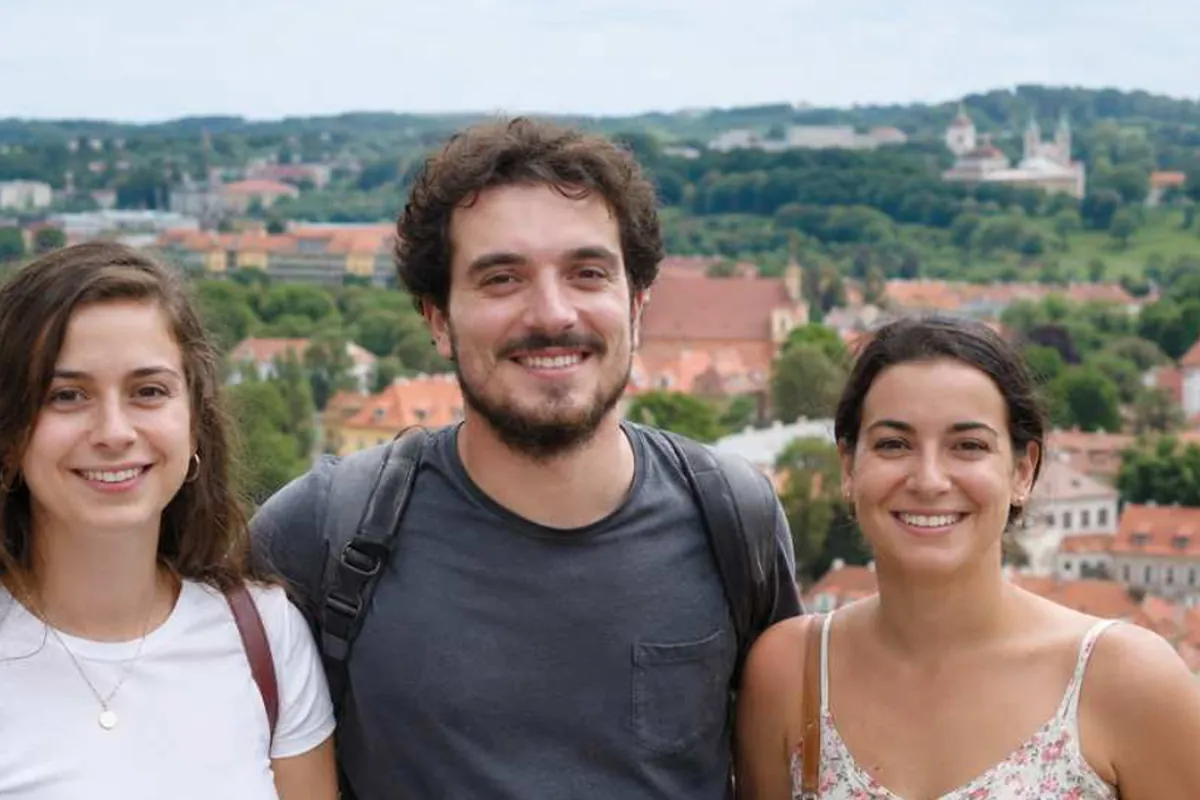
 OriginalAfter
How It Works
-
1 Add Your Photos
Tap Select Files, drop photos on the page or paste one. JPEG, PNG, WebP and HEIC all work, and you can add many at once.
-
2 Pick the Size
Tap 20, 50, 100 or 200 KB, or type the size the form or website asks for. Each photo is saved at or under it, at the best quality that fits.
-

3 Save
Check the new size under the photo, then tap Save. With several photos, Save All gives you every one together.
The Best Quality That Fits
The tool tries the highest quality first and finds the best one that still fits, so a photo is never squeezed more than it has to be.
Made Smaller Only When Needed
A photo keeps its width and height when it fits at half quality or better. Only a photo that does not is made smaller, keeping its shape.
Your Own Width and Height
A form wants exact pixels too? Type the width and height under Resize, and the tool fits the size by quality alone.
Many Photos at Once
Add as many photos as you like; each one is sized on its own, and Save All gives you all of them.
Compress Image to 20KB at a Glance
| Price | Free, with no watermark and no sign-up |
|---|---|
| Sizes | 20, 50, 100 or 200 KB with one tap, or any size you type |
| How a KB is counted | 1,000 bytes, so the file is at or under the size for a form that counts either way |
| Opens | JPEG, PNG, WebP, HEIC, HEIF, AVIF, GIF, BMP |
| Saves as | JPEG, WebP, PNG |
| Files at once | As many as you like; save them one by one or all together |
| Where it runs | In your browser; nothing is uploaded |
Updated November 26, 2026
Frequently Asked Questions
How do I compress an image to 20 KB?
Add the photo and save: this page starts at 20 KB. The tool finds the best quality that fits under it, and makes the photo smaller in width and height only if it has to.
How big is a photo at 20 KB?
In the pictures on this page, a 1536 × 1024 photo of 2.4 MB came out 484 × 322 pixels at 20 KB. That is enough for a form photo or a small picture on a page; a photo with less fine detail, such as a face on a plain wall, stays bigger.
Why is my photo smaller in width and height now?
A big photo cannot fit in a small file at a good quality. When a photo does not fit even at half quality, the tool makes it smaller in width and height, step by step, until it fits at a better quality, which looks better than a full-size photo at a very low quality. The note on the photo and the size under it say what changed.
Can I keep the width and height a form asks for?
Yes. Type the width and height under Resize and press Apply. The tool then fits the size by lowering the quality only, and tells you if the photo cannot get that small at those pixels.
Why does my computer show a little less than the size I asked for?
The tool counts a KB as 1,000 bytes, so a 50 KB limit means at most 50,000 bytes. That also passes a form that counts 1,024 bytes to a KB. Windows and this page count 1,024 bytes to a KB, so they show such a file as about 48 or 49 KB.
What size should a photo be for a form?
Use the size the form names. Many exam and job application forms ask for a photo between 20 and 50 KB and a signature between 10 and 20 KB, but each form sets its own. If it gives a range, pick a size near the top of it for the best quality.
Which formats can I use?
You can add JPEG, PNG, WebP, HEIC, AVIF, GIF and BMP photos, and save them as JPEG, WebP or PNG. JPEG is what most forms ask for. PNG suits small sizes badly: to fit, a PNG photo gets fewer colors and comes out much smaller in pixels.
What if my photo is already under the size?
Then it is given back as it is, untouched, and a note says so. A photo in another format is converted and sized as usual.
My photo has to be bigger than a size. Can this tool do that?
Use Increase Image Size in KB: it makes a photo at least the size you type without changing its width and height.
Is it free and private?
Yes. It is free, with no sign-up and no watermark, and every photo is compressed by your browser, so nothing is uploaded.